
Missing files, on the job
Collect Info and Request Information pull artwork back to the order instead of a generic “please send the file” inbox.
Orderflow for print shops
A print job is rarely ready when Shopify takes payment. You still need a usable file, a proof, a revision cycle, a place in the print queue, and a date it has to leave the shop.
Orders
Active Orders
Field & Pine
250 business cards — silk
Ship by
Sep 29
Cove Architecture
24×36 posters — 15
Ship by
Oct 2
Mira Chen
Saddle-stitch booklets — 80
Ship by
Oct 7
Oak Street Cafe
Window cling set
Ship by
Today
The file is the job. It has to live on the order.
The problem after checkout
Someone ordered 250 business cards. Shopify has the quantity and the address. Prepress still does not have a press-ready PDF, or the one they sent is RGB, or the bleed is wrong.
Shopify recorded the print sale. Orderflow is for file collection, proofing, and the production queue that sale creates.
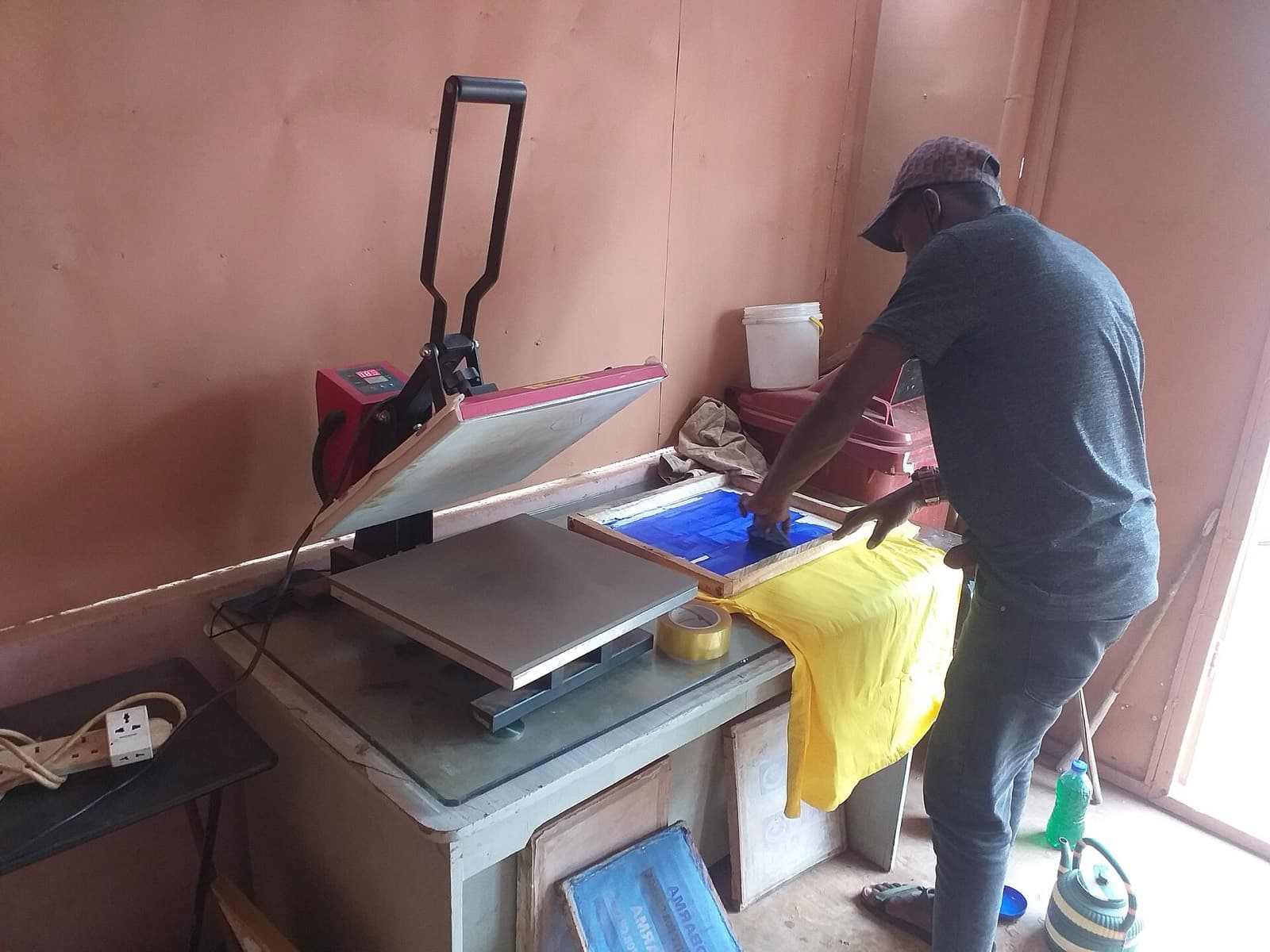
Cards, posters, banners, and books have different machines. They share a file-and-approval problem before anything should hit the press.
The Shopify line item becomes a job on the working queue.
If the artwork is missing or unusable, Request Information or Collect Info gathers it on that order.
Send a proof they can approve. Keep the file that belongs to that version on the order.
A new proof version replaces guesswork about which PDF is current.
Move the job into the print-queue status your shop uses.
Ship by stays visible while you cut, bind, pack, and fulfill in Shopify.
#8804
250 business cards — silk
Waiting on filePrint shops lose time when the approved file and the due date are in different tools. Orderflow keeps both on the Shopify order your team already recognizes.
Collect Info and Request Information pull artwork back to the order instead of a generic “please send the file” inbox.
Proof Review is built for approval and another round — the usual print conversation — without losing the previous version.
Prepress, waiting on file, on press, finishing, and ready to ship are your statuses. Orderflow does not invent a press schedule.
Ship by dates belong on the working queue so rush cards do not hide behind a newer poster.
Bleed, stock, and coating notes stay internal. Customer-facing updates use templates and Customer Message.
Field & Pine
Cove Architecture
Mira Chen
#8804
Field & Pine
hello@fieldpine.example
Ship by
Sep 29
Fulfillment
Unfulfilled
We need a print-ready PDF with bleed before we can proof the cards. Upload it from the lookup page.
The order workspace
Sample print-queue rows. Not a real shop’s volume or ratings.
From the bench
Orderflow
#1042
Custom print — 11×14
Ship by Today
#1041
Personalized mug
Ship by Sep 26
#1038
Photo blanket
Ship by Sep 29
Ready to clear prepress?
Orderflow is not a RIP or an imposition tool. It is the Shopify-side workflow from missing artwork to a job that is ready to fulfill.
No. Prepress software and the press stay where they are. Orderflow tracks the Shopify order through file collection, proofing, and the statuses you use on the floor.
Keep them on the order. Proof Review is how you show which version you are asking them to approve, so the press is not guessing.
Ship by dates sit on the working queue. You can sort by that date so a rush card job does not sit behind a newer poster.
Practical guides for the workflow on this page. These are not Help articles.